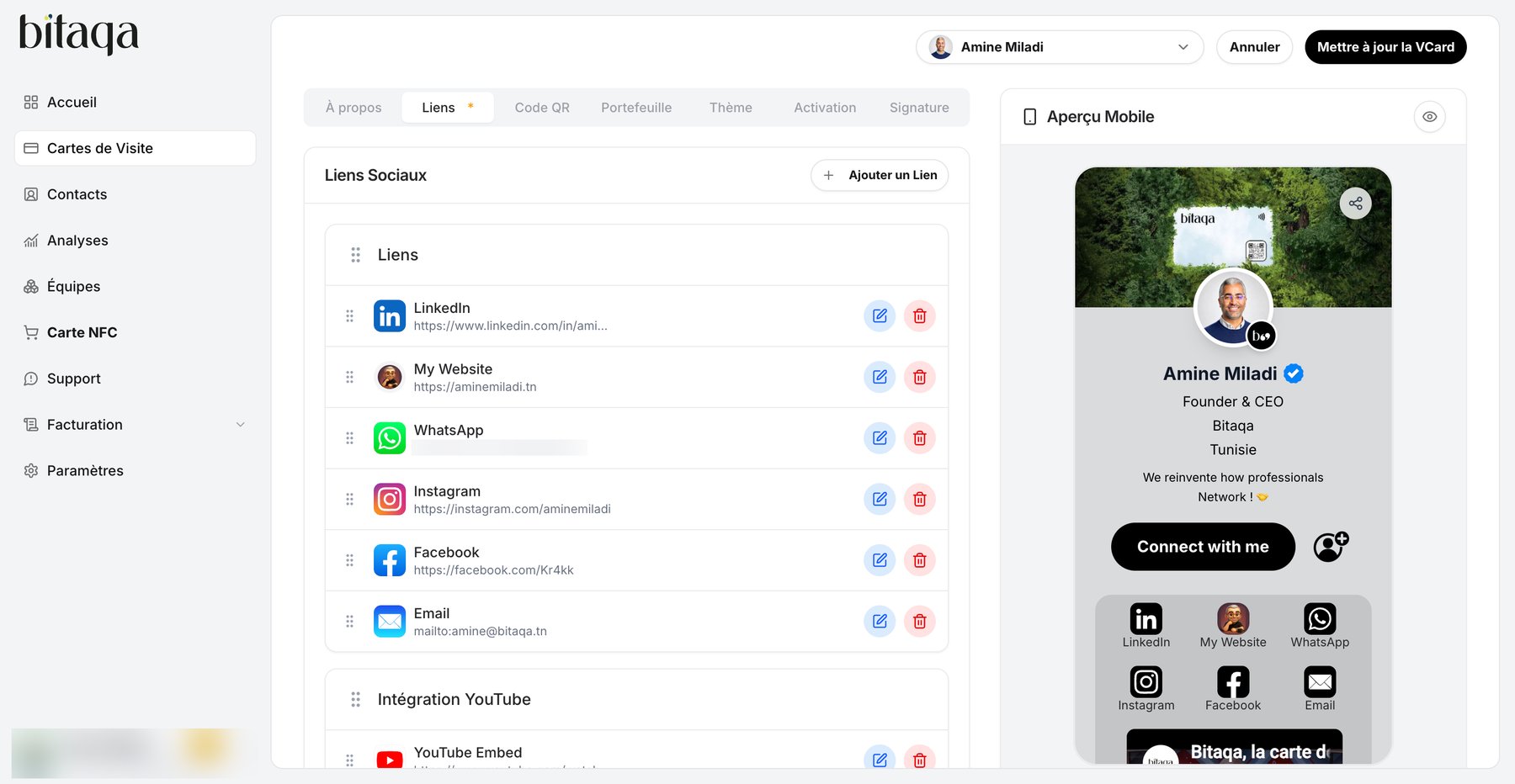
Button and menu names below are shown as they appear in the French interface.
With the Free plan, social networks and contact information are limited. The Pro plan makes them unlimited.
Open the card editor
1
Open Cartes de Visite (Business cards)
Log in to my.bitaqa.tn, then click Cartes de Visite in the left menu.
2
Edit the profile
On the card you want to edit, click Modifier le profil.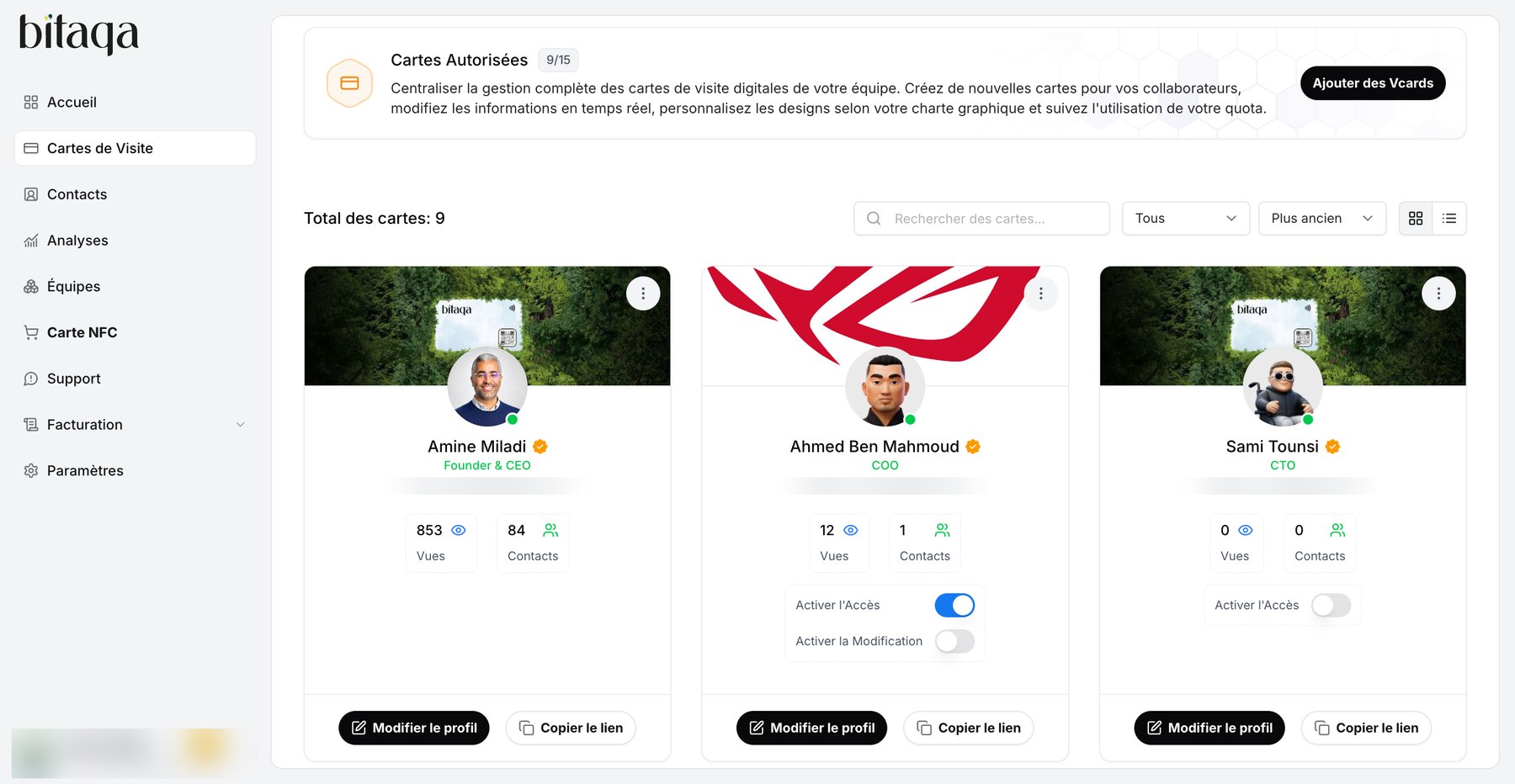
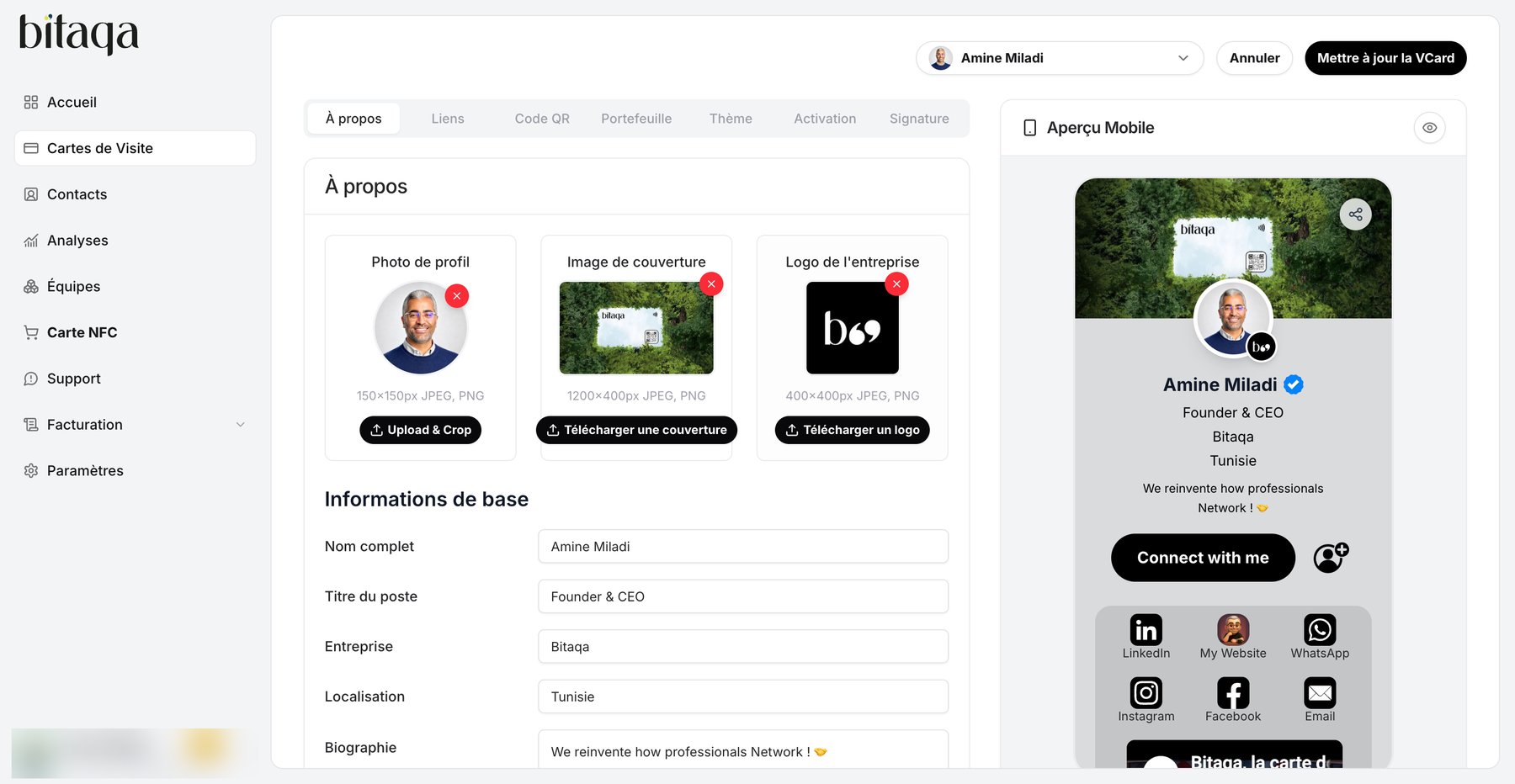
Edit the About tab (À propos)
1
Add your images
- Profile photo (150×150 px, JPEG or PNG): click Upload & Crop.
- Cover image (1200×400 px, JPEG or PNG): click Télécharger une couverture.
- Company logo (400×400 px, JPEG or PNG): click Télécharger un logo.
2
Fill in the basic information
Complete Nom complet (full name), Titre du poste (job title), Entreprise (company), Localisation (location) and Biographie (150 characters maximum).
3
Complete the contact information
Check your Nom d’utilisateur (username): it sets your card’s public address (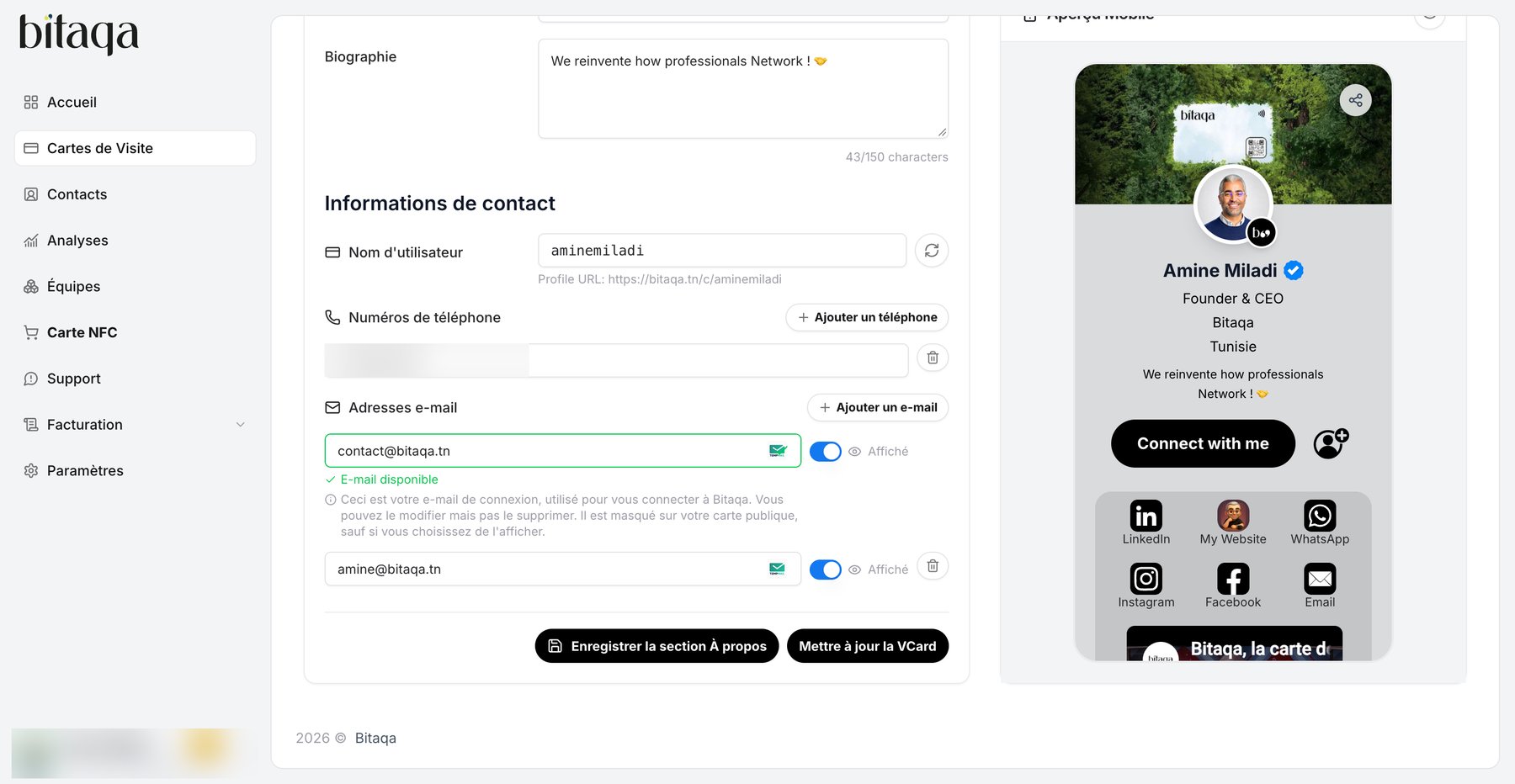
bitaqa.tn/c/username). Add your numbers with Ajouter un téléphone and your emails with Ajouter un e-mail.4
Save
Click Enregistrer la section À propos, then Mettre à jour la VCard at the top right. Annuler discards your changes.
Add your links
In the Liens tab, click Ajouter un Lien to add a social network or a custom link. You can also embed a YouTube video, highlights and a photo gallery. Finish with Sauvegarder la Section des Liens.