

Button names are shown as in the French interface.
1
Open Équipes
Click Équipes in the left menu. The number of teams appears at the top of the page.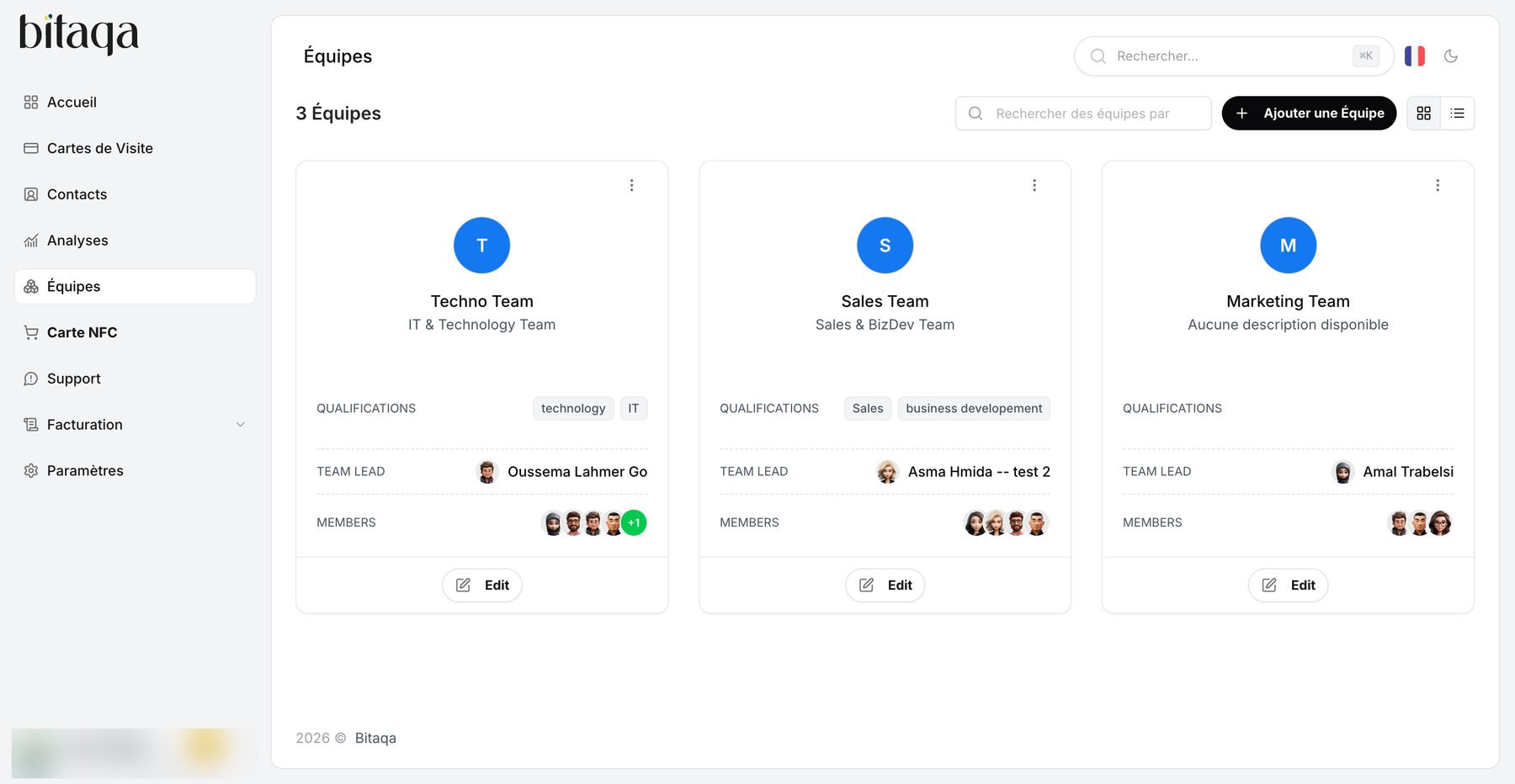
2
Read a team card
Each team shows its name, description, Qualifications, Team Lead and Members.
3
Create a team
Click Ajouter une Équipe.
4
Edit a team
Click Edit on the team card.
Enable access and editing for a card
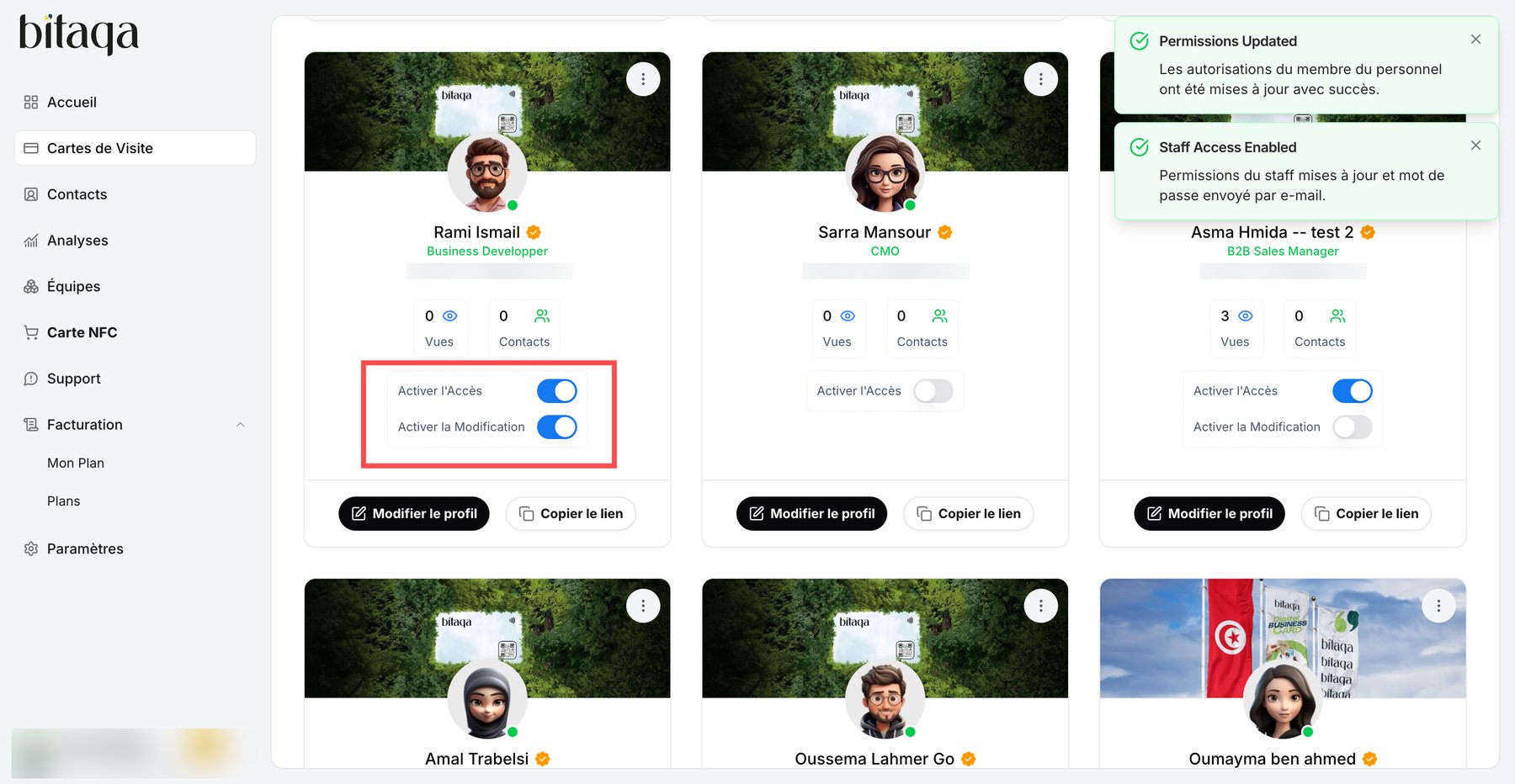
In Cartes de Visite, each team member’s card offers two switches:- Activer l’Accès (enable access): gives the colleague access to the customer space. A confirmation appears (“Staff Access Enabled”) and their password is sent to them by email.
- Activer la Modification (enable editing): available once access is on, it lets this colleague edit their card. The “Permissions Updated” message confirms the change.
Teams and member groups are part of the Pro plan.