

CRM integrations are a Pro feature. Only the company owner can connect or reconnect a CRM.
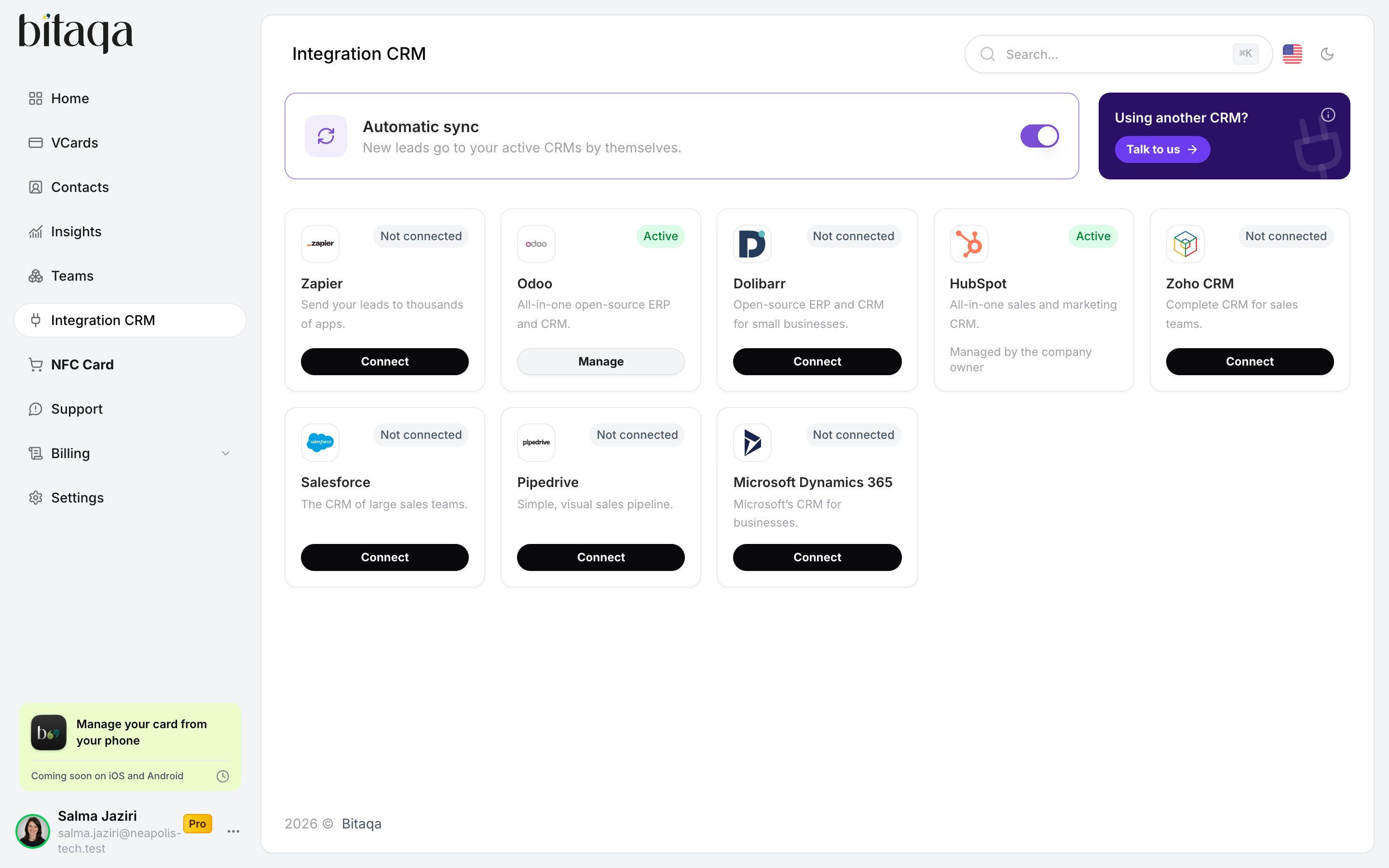
Available CRMs
Connect a CRM
1
Open Integration CRM
- Dashboard: click Integration CRM in the left menu.
- Mobile app: open Settings, then Integration CRM in the Account section.
2
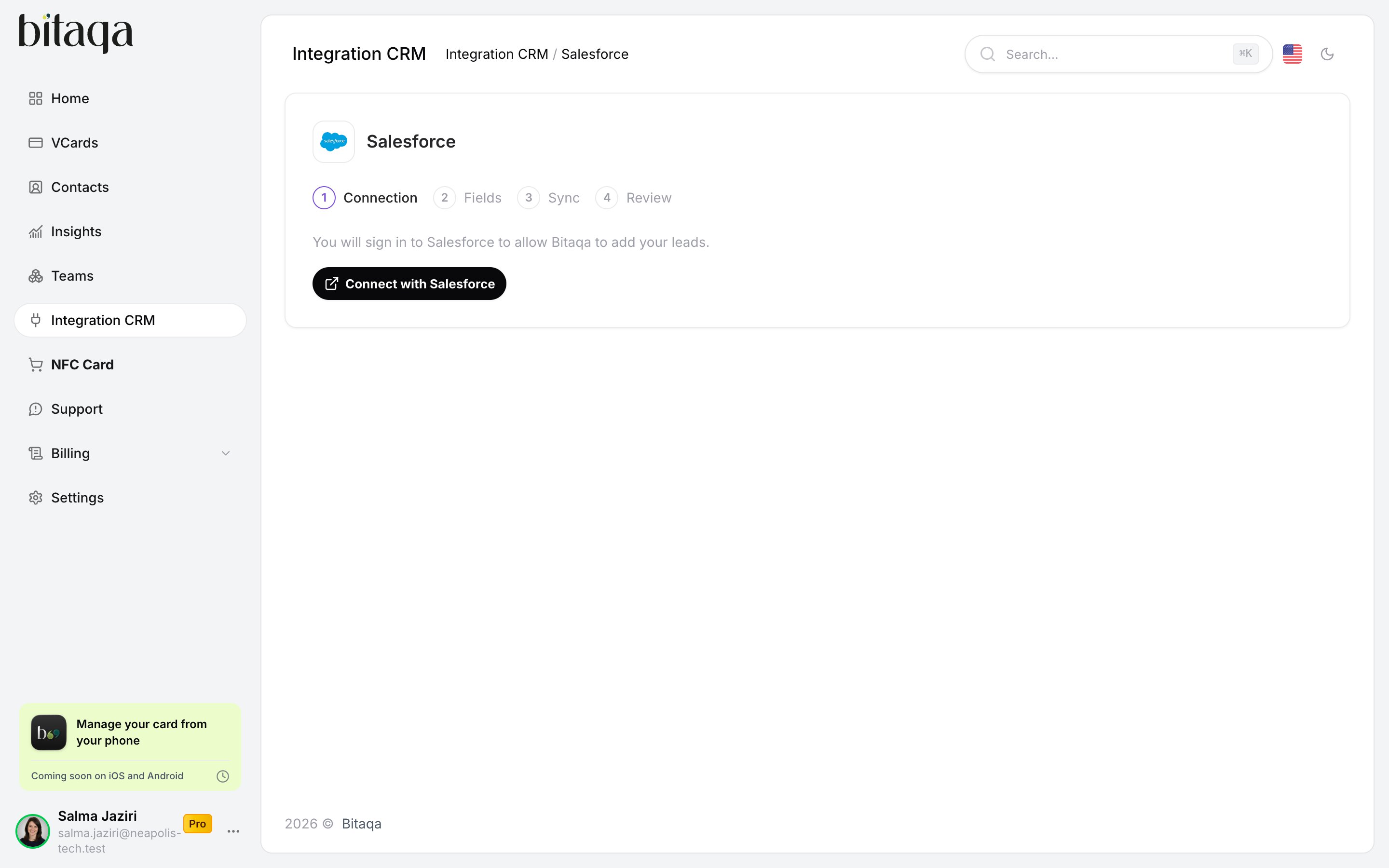
Connection
- HubSpot, Salesforce, Zoho CRM, Pipedrive: click Connect with followed by the CRM’s name, then allow Bitaqa in the CRM’s window.
- Microsoft Dynamics 365: enter the Environment address, then sign in to your Microsoft account.
- Odoo: enter the Odoo address, the Database and the API key. The Login is only needed for Odoo versions before 19.
- Dolibarr: enter the Dolibarr address and the API key. The “API REST” module must be enabled in Dolibarr.
- Zapier: in Zapier, create a Webhooks by Zapier → Catch Hook trigger, then paste its address into Catch Hook URL.
3
Fields
Match each Bitaqa field to the CRM field that should receive it. You can send:Full name, First name, Last name, E-mail, Phone, Company, Job title, Location, Note, Event, Source, Captured at, Lead score, Captured by and Card URL.
4
Sync
Under When the lead already exists in the CRM, choose:
- Link to the existing record, change nothing
- Update the existing record
- Always create a new record
5
Review
Check the connection and the Fields sent, then click Save and activate.
Manage a connection
On a connected CRM’s card, click Manage. The CRM’s page shows its connection, its Fields and sync, Who can manage and the History of sends. Its buttons let you:- Pause: new leads are not sent until you click Activate.
- Test connection: check that Bitaqa can still reach your CRM.
- Edit: change the connection, the fields sent or the sync settings.
- Disconnect: leads stop being sent and the credentials are deleted. The field mapping and the history are kept.