

Start by connecting your CRM.
Automatic sync
When Automatic sync is on, new leads go to your active CRMs by themselves. When it is off, send your leads from the Contacts page. Only the company owner can turn automatic sync on or off, from the Integration CRM page. If Also send later edits is on for that CRM, a lead edited in Bitaqa is also updated in the CRM.Send leads when you choose
1
Open Contacts
Click Contacts in the left menu.
2
Choose to send
Open the export menu, then click Send to a CRM.
3
Pick the CRM
Choose the destination CRM. A message confirms how many leads were sent.
A lead already sent in the last minute is skipped, to avoid duplicates.
Follow each send
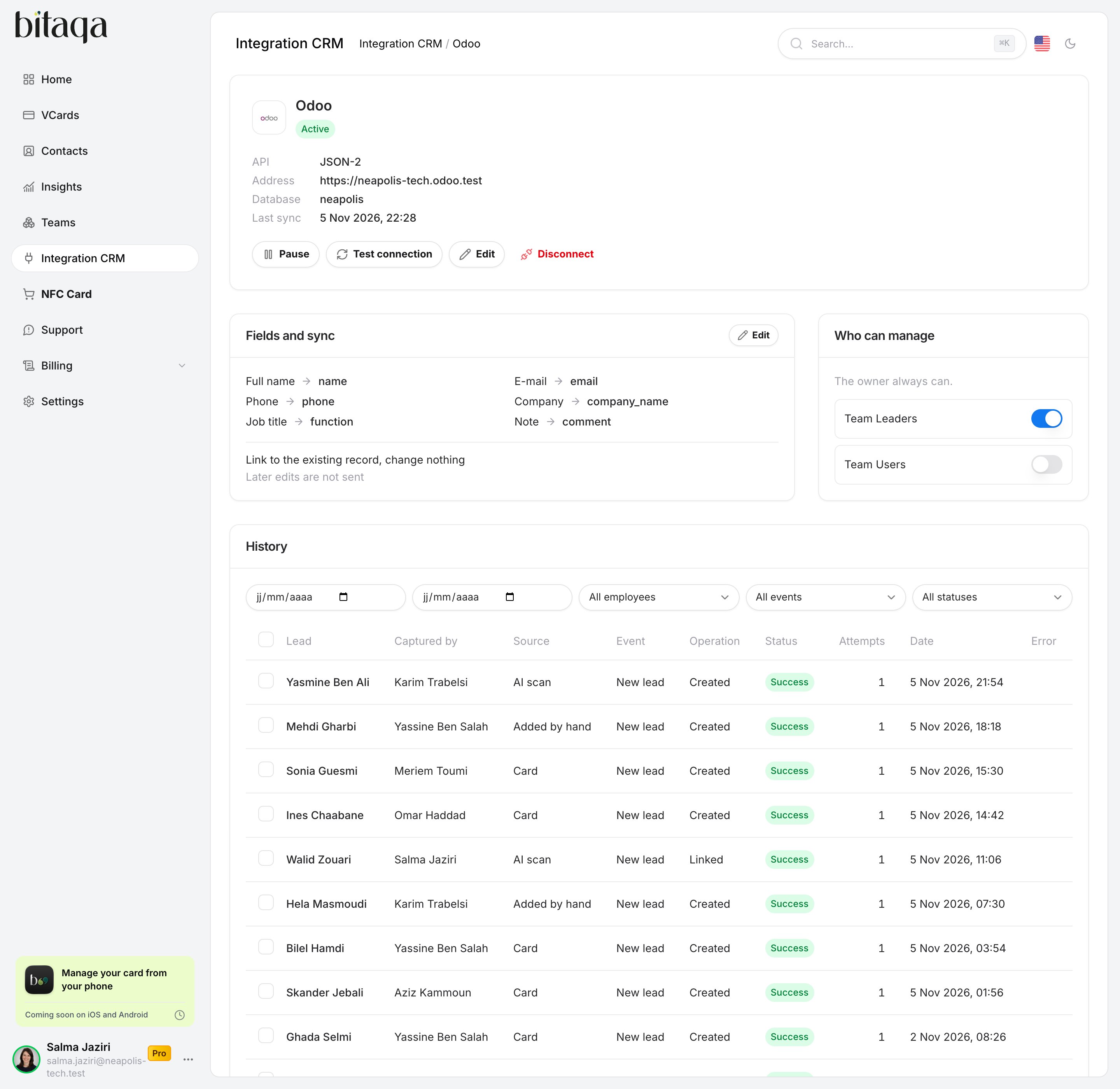
On the Integration CRM page, click Manage on a CRM’s card, then scroll down to the History. For each operation, you see:- the Lead and who it was Captured by;
- the Event (new lead, lead edited, test event) and How it was sent (automatic or by hand);
- the Status, the number of Attempts and any Error;
- the Data sent, field by field.
Retry a send
- Click Retry on a failed operation. The lead is sent again, and it is never created twice in the CRM.
- For several operations, select them, then click Retry failed or Send again. Each lead is sent with its current data and updates its record.
Frequently asked questions
The lead score is not up to date in my CRM
The lead score is not up to date in my CRM
The score is calculated right after the lead is captured. Turn on Also send later edits so the updated score reaches your CRM.
"Ask the company owner to reconnect"
"Ask the company owner to reconnect"
Access to the CRM has expired. Only the owner can click Reconnect.
Sync is paused
Sync is paused
The connection was paused. Open Manage on the CRM’s card, then click Activate.