

Scanning is a Pro feature. Each document read uses one AI scan from your company. See Credits and packs to follow your balance.
Scan from your dashboard
1
Open the scanner
Click Contacts in the left menu, then AI Card Scanner.
2
Pick the document type
Under Document type, choose Business card or Event badge.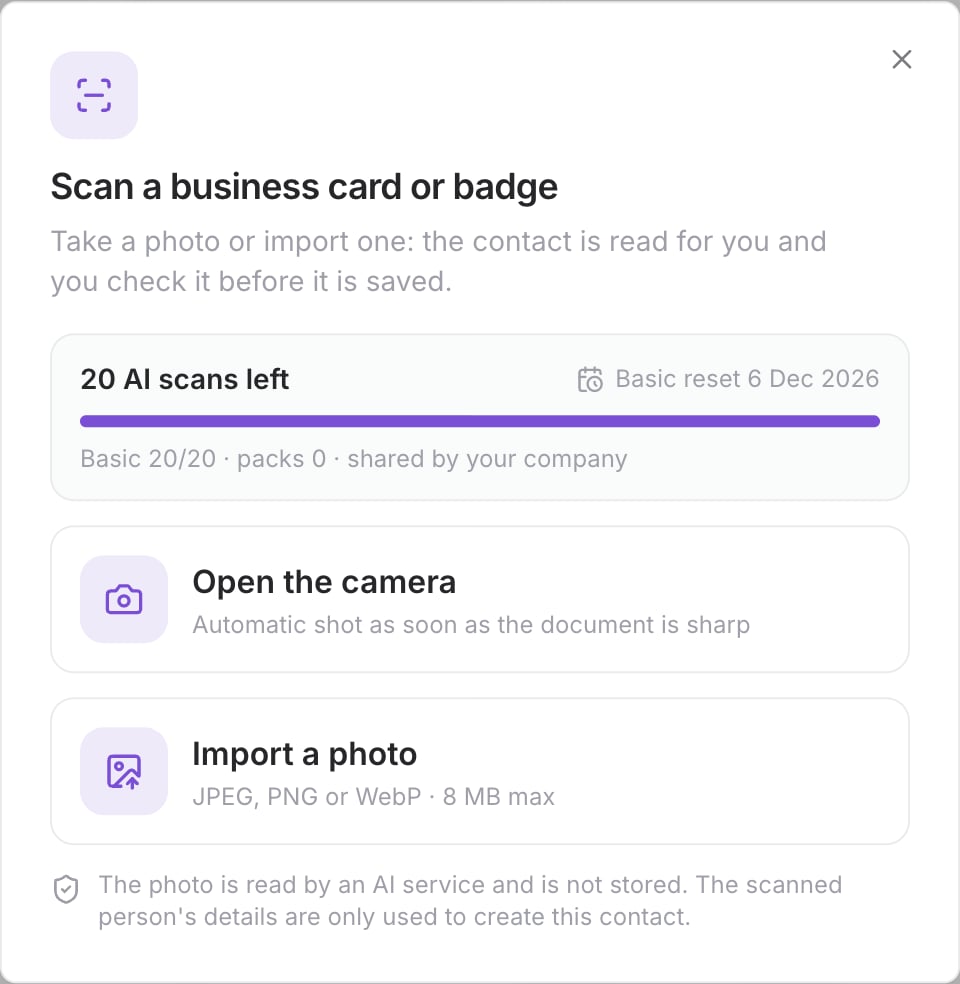
3
Take or import the photo
- Open the camera: line up the 4 edges of the document with the frame. The photo is taken automatically as soon as the document is sharp.
- Import a photo: choose a JPEG, PNG or WebP image of up to 8 MB.
4
Read the document
On the Check the photo screen, click Read the document. Click Another photo to choose a different one.
5
Check the contact
The Check the contact screen shows the fields that were read. Each one is tagged Read by AI or From the QR code. Correct anything that needs it.
6
Add the contact
Click Add the contact. Nothing is saved before this step. Click Scan again to start over.
Scan from the mobile app
1
Open the scanner
Open the Contacts tab, then tap the purple AI Card scanner button above the tab bar.
2
Photograph the document
Choose the document type, then tap Take the picture. You can also import a photo from your gallery.
3
Check and save
Read through the fields, correct them if needed, then tap Add the contact.
What the AI reads
- Extra e-mails and phone numbers, the website and the address go into the Note, which you can edit.
- If the document has a contact QR code (vCard), it is read too.
- The document can be in French, Arabic, English or a mix of them. A tilted or rotated photo is fine.
Warnings before saving
The check screen tells you when a field needs your attention:- An e-mail address looks invalid: check it.
- A phone number could not be validated: check it.
- Low confidence: read each field carefully.
- Duplicate: if a contact with the same e-mail or phone already exists on this card, choose Add anyway or Cancel.
AI scans and credits
- Each document read uses one AI scan. A scan that reads nothing is not counted.
- Your company gets 20 AI scans included every 3 months. You can buy extra scan packs.
- The scanner shows how many AI scans you have left.
Troubleshooting
Nothing could be read
Nothing could be read
Try again with more light and the whole document in the frame.
This does not look like the chosen document
This does not look like the chosen document
Try again, or switch the document type between Business card and Event badge.
Camera access was refused
Camera access was refused
Allow the camera in your browser settings, or use Import a photo.
Too many attempts in a short time
Too many attempts in a short time
Wait a minute before scanning again.
Scanning is a Pro feature
Scanning is a Pro feature
Upgrade to Pro to use the scanner. See Upgrade to Pro.